Moving a WordPress site off Flywheel comes down to two jobs: copy your files and database to a new server, then change your domain's DNS records (usually the main domain and www) so they point there. DNS is the internet's address book; it tells browsers which server your domain lives on. The copy is the easy part. What breaks is the work Flywheel did outside WordPress: redirects, caching, the email your site sends, and the SSL certificate that puts the padlock in the browser.
The order matters too. Take your own copy first and cancel Flywheel last, because on the cancellation date Flywheel removes the sites on that subscription and every backup it kept for them.
If you heard Flywheel is closing, its own pages don't say so. On Oct 23, 2026, its homepage was still selling plans and its status page listed a PHP security update that week. Its "Is Flywheel going away?" answer, last updated Dec 6, 2024, gives no timeline. There's no need to rush, only to do it in the right order.
I've built and run client WordPress sites for about twenty years, and I've moved a lot of them to Cloudways. One was Relevant Magazine, which I moved off Flywheel. On Cloudways it ran on a server with a fixed amount of processor and memory, and it ran clearly better. I don't have before-and-after numbers to share, so take that as what I saw, not a measurement. I wrote about it in my Cloudways review.
For this guide, on Oct 27, 2026, I set up a 14-day demo site on Flywheel, pointed a brand-new test subdomain of this site's domain at a Cloudways trial server, and moved the demo there with Cloudways' free migration plugin. The screenshots, timings and anything I call "my test move" come from that run. It wasn't a live site, so there was no real domain switch. The advice on switching, like the other facts here, comes from the hosts', plugin makers', WordPress's, Google's and Cloudflare's docs, checked Oct 23–24, 2026.
About the links. Some links on this page pay me: if you sign up for Cloudways, Bluehost, WP Engine or WordPress.com through them, I earn a commission. Pressable pays this site too, but I haven't used it, so it gets no link. Hostinger, SiteGround and Kinsta don't pay this site and get no links; they're here because their offers matter to your decision. Flywheel gets no link, though its owner, WP Engine, pays this site. Who pays doesn't change what I tell you: the Step 2 table lists hosts that pay and hosts that don't.
This guide covers one WordPress site moving to a new host on the same domain. Multisite takes more work, and changing your domain at the same time is a different job.
The order, in one list
Before you start, find your Flywheel renewal date and lower your DNS TTL (how long other computers may keep a cached copy of your DNS records) about a week ahead. Then:
- Take your own copy off Flywheel, and note what Flywheel was doing for you.
- Build the new server and copy the site over, then turn on its caching.
- Check the copy on its temporary address, and redo redirects, PHP and site email.
- Upgrade from the trial and plan the certificate.
- Freeze the old site, take a final copy, and switch your domain: make it primary on the new host, then change the A record (the DNS entry that points your domain at a server) and www. Leave your email records alone. Install the new certificate right after.
- Take over Flywheel's chores: caching, updates, login protection, scheduled tasks.
- Cancel Flywheel last, once visits to it have stopped, after one more backup download.
What comes with you, and what stays at Flywheel
What comes with the files
Your site is two things: the wp-content folder (your theme, plugins and uploads) and the database (posts, pages, settings and users). Both come with you. WordPress itself doesn't need to; the new host supplies a fresh copy.
Flywheel also installs four must-use plugins, which are always on: Flywheel, Limit Login Attempts, Disable Core Updates and Nginx Compatibility. Disable Core Updates "Completely disables the core update checking system in WordPress." Flywheel doesn't document whether they travel with a copy, so check (Step 2).
What you redo on the new host
| What Flywheel did | What you do now |
|---|---|
| Kept redirects in its dashboard | Download the CSV and rebuild them (Steps 1 and 3) |
| Cached your pages on its servers | Turn on the new host's caching (Step 2) |
| Wrote and locked wp-config.php, WordPress's settings file | Note your table prefix (Step 1) |
| Ran core updates | Turn on automatic updates (Step 6) |
| Limited logins and blocked xmlrpc.php, an old file some apps use to reach WordPress | Check what replaces them (Step 6) |
| Allowed no server cron (tasks the server runs on a timer) | Turn on server cron (Step 6) |
| Ran PHP, the language WordPress runs on, at 8.4 or 7.4 | Match your version (Step 3) |
| Authenticated site email through SendGrid, if you set it up | Set up SMTP, a proper outgoing mail service (Step 3) |
| Issued a free SSL certificate that can't be moved | Get a new one from Let's Encrypt, the free certificate service (Steps 4 and 5) |
Will my email break?
Not if you leave your MX and TXT records alone. Flywheel never hosted mailboxes ("We do not offer email accounts!"), so your MX records, which tell mail servers where to deliver your email, already point elsewhere. Only the email your site sends (forms, receipts, password resets) used Flywheel's setup; Step 3 covers it.
Where your domain lives
Flywheel "does not offer name servers," so your DNS records live with your domain registrar, or with Cloudflare if you use it. Your site points at Flywheel through A and CNAME records (a CNAME points one name at another), plus a TXT record that proves you own the domain. Change only the records for your domain and www; Flywheel warns that changing other values "can break things with your setup, most notably email." First, screenshot or export the full record list.
If you run a store
I'm going by WooCommerce's docs here, not a store move of my own.
- Subscriptions can bill from two places. WooCommerce says a copy that keeps the same domain "will not trigger staging mode," its guard for test copies. So at the switch (Step 5), stop the old site: change its URL or turn off Action Scheduler's default queue runner (the background job runner) there. "Without completing one of these steps, your old site will continue to process real recurring payments." The copy can charge renewals too once it answers to your real domain, so keep its queue runner off until the switch. Never changed those settings? Ask WooCommerce support or your developer first.
- Orders may sit in their own tables. HPOS, WooCommerce's newer order storage, is on by default for new installs from version 8.2. Your copy has to bring every table (Steps 2 and 3).
- WooPayments says a moved site can go into Safe Mode. Read its page on site moves before you take a payment on the new server.
If you haven't picked a new host yet
Which host fits depends on how much of Flywheel's work you want handed off, not on who pays me: Hostinger, which doesn't, has the lowest five-year price in my renewal-price piece.
You want someone else to run everything, the way Flywheel did
WP Engine is the closest match on paper, and Flywheel's only guide to leaving is a guide to moving there. Its Essential plan, sized like Flywheel Starter, was $336 for the first year, then $420 a year, when I checked on Oct 21, 2026. That's its pricing pages talking; I haven't run client sites there. See WP Engine's plans.
WordPress.com Business runs everything for you, plugins included, and had the smallest renewal step in that piece: billed yearly, $25 a month becomes $28 (checked Oct 21, 2026). See WordPress.com's plans.
You want a server sized to your site, with no renewal jump
Cloudways is where I've moved many client sites. For a small site I'd start on its 2GB Premium server on DigitalOcean: $28 a month, billed by the hour, and the same when it renews (checked Oct 23, 2026). The trade-off is the table above: Flywheel's jobs become yours. Start Cloudways' free trial.
One small site that will stay small, and you're fine prepaying
Hostinger came to $251.40 over five years for its 48-month Premium deal, renewal year included, at a Black Friday sale price that was live when I checked on Oct 21, 2026. Bluehost Starter on 36 months came to $383.40 over five years. See Bluehost's plans. Both jump when the prepaid term ends.
Before you start: your renewal date, your TTL and the hour
Your renewal date
Flywheel's Starter plan is listed at $25 a month, "Billed at $300/year" (checked Oct 23, 2026). Find your renewal date under the user menu, then Billing.
- The money-back window won't cover a renewal. Flywheel's 60-day money-back guarantee is for new plans and "does not apply to upgrades or renewals."
- Flywheel's pages don't agree on cancelling. Its billing page says you "can cancel your subscription at any time, at which point you won't see any future charges." But the Terms of Service link on Flywheel's site opens WP Engine's terms, which say a plan auto-renews unless you give notice "no later than 30 days prior to the expiration of the active term." No Flywheel doc says whether a plan cancelled mid-term gets money back.
- Leave room. End the overlap, plus a few days' buffer, at least 30 days before the renewal date, unless Flywheel's billing team tells you in writing that the 30-day notice doesn't apply.
On Cloudways, two weeks of overlap on the 2GB server is about $14 at $0.0417 an hour (checked Oct 23, 2026), before tax and backup storage: arithmetic, not a bill, and it starts when you upgrade from the trial. If you've prepaid Flywheel for the year, I'd fit the overlap inside it.
Lower your TTL now
A long TTL means changes take longer to spread. Google's site-move guide suggests a few hours, set at least a week ahead; Cloudways' checklist says 300 seconds (five minutes). I'd set your domain and www records to 300 seconds a week out, since anything that cached a record can keep the old value until the old TTL runs out. With Cloudflare's proxy on (the orange cloud next to a record), those records are already fixed at 300 seconds.
Pick the hour
Switch midweek, at your site's quietest hour, not right before a weekend, a holiday or a sale, so working days follow to catch anything that broke.
Step 1: Take your own copy off Flywheel
Do this before you touch the new host, and keep the copy after you've cancelled. WP Engine's terms say "it is your responsibility to maintain offline backups of your site at all times."
Download a backup
Flywheel backs your site up nightly and keeps each backup for 30 days; "Create new backup" on the Backups tab makes one any time. Click the ellipsis (…) next to a backup, then Download, and Flywheel emails it to your profile's address; allow 10 to 15 minutes per gigabyte, it says. Staging copies aren't backed up, so copy any staging work yourself.
When the email arrives, check that the archive holds your wp-content folder and a database file.
Flywheel's Database Manager (Advanced tab, then Manage Database) also exports SQL files. Flywheel warns that with some backup plugins, "some of the MySQL queries can even take your site offline," so run the Migrator in Step 2, and any other copying plugin, at a quiet hour.
Write down what Flywheel does for you
- Your PHP version, on the Advanced tab. Flywheel offers only 8.4 and 7.4; my demo site was on 8.4.
- Your table prefix, the letters in front of every table name in your database, also on the Advanced tab. Any new wp-config.php has to use the same one.
- Privacy mode, Flywheel's password wall in front of the whole site. If it's on, note its username and password for the migration wizard.
- Your Cloudflare settings, if you use Cloudflare (Step 4).
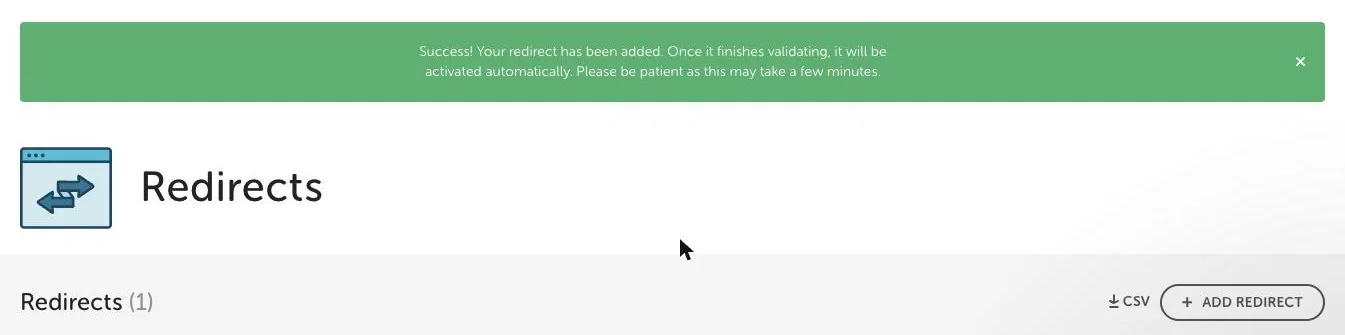
- Your redirects, under Advanced, then Site Redirects, then Manage Redirects. The Redirects page has a "⤓ CSV" download button: download the list before you go. Each rule's Source is a regex, a pattern that can match more than one address. Redirects made in the Redirection plugin live inside WordPress, so they come with your copy.
Step 2: Build the new home and copy the site over
These steps are for Cloudways, where my test move went. With another host, use its plugin or its team, then pick up again at Step 3.
Who moves it: you, a plugin, or the new host's team
For an ordinary site, I'd use the host's plugin; for a big store, or a site the plugin chokes on, the host's team.
| Host | Who moves it free | Strings attached | Leaves out |
|---|---|---|---|
| Cloudways | Its plugin, unlimited; its team, but how many is disputed | No team moves during the trial | SSL certificates, email history |
| WP Engine | Its plugin; its team only for some new agency customers | Plugin has its own requirements | Not stated |
| Pressable | Its plugin or team, once you buy a plan | WordPress only | Not stated |
| WordPress.com | Its team on paid plans, or its plugin | Replaces the site you move into | Subscribers, post likes, config edits |
| Bluehost | Its team: up to five sites in your first 30 days | 10 GB per site | Third-party email |
| Hostinger | Its team, after you buy a plan | Web, Cloud and Agency plans only | Email, cron jobs, DNS records, custom SSL |
| SiteGround | Its plugin | Team moves: its pages disagree on cost | Not stated |
| Kinsta | Its team, within your plan's install count | $49 to speed it up | Pointing your domain, email |
Each host's own migration pages, checked Oct 23, 2026. Hosts that pay this site: Cloudways, WP Engine, Pressable, WordPress.com, Bluehost. Hosts that don't: Hostinger, SiteGround, Kinsta.
Going to WP Engine? Flywheel's own exit guide points to WP Engine's free migration plugin. Whoever does the copy, the DNS change, your site's email and the certificate stay your job.
On Cloudways, I'd use the free Cloudways WordPress Migrator plugin, as I did on my test move; Cloudways calls it "completely free, no matter how many sites you move." Want its team to move several sites after you upgrade? Get your account's free count in writing.
Start the trial and launch WordPress
Cloudways' public trial page said three days, with no credit card, on Oct 23 and again on Oct 27, 2026. The launch screen in the new account I opened that day offered five: "Start Your 5-Day Free Trial. Your trial starts when you launch a server. Billing starts once you Upgrade your account." Finish Step 1 first.
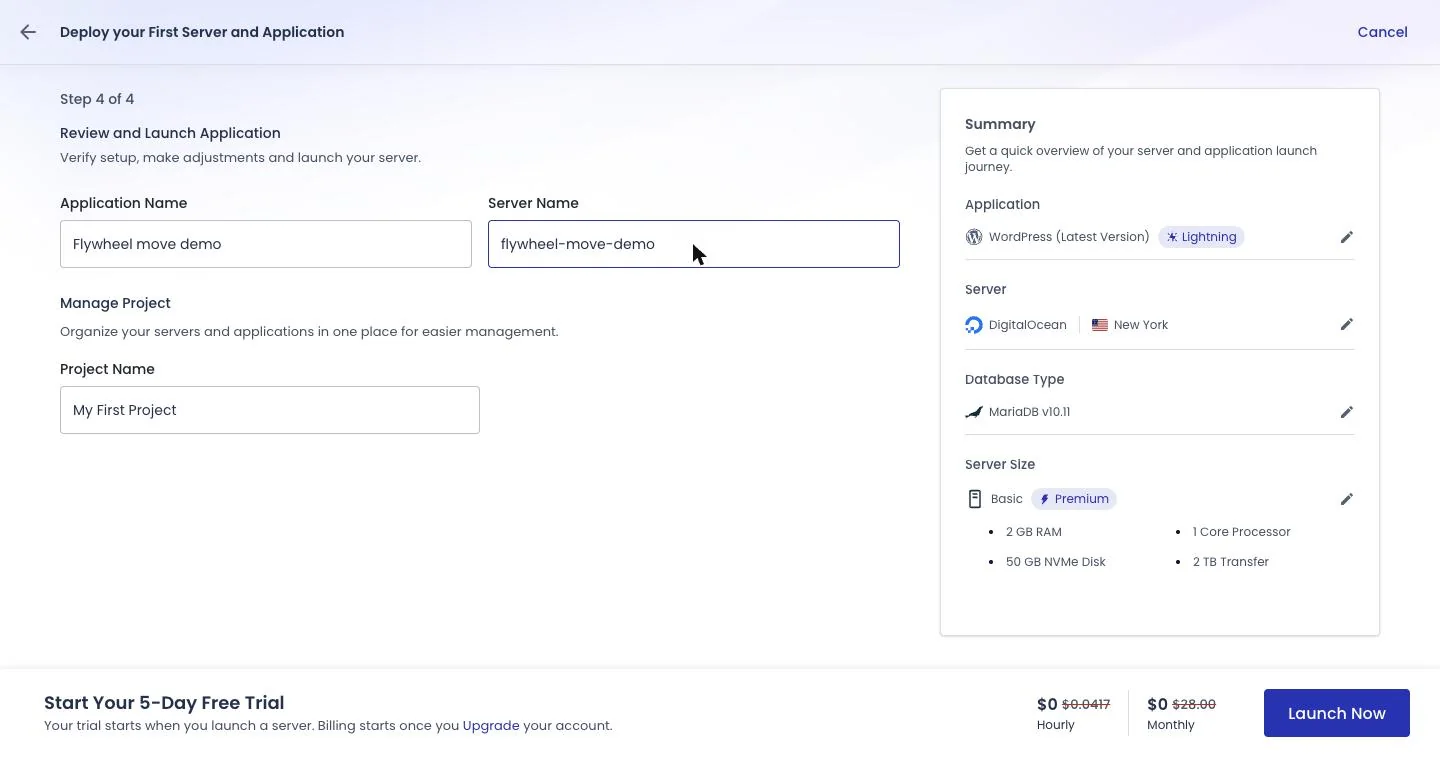
- Pick Flexible, not Autonomous. Cloudways says custom domains "are not part of the trial" on Autonomous.
- Keep the Lightning stack. The stack is the server software your site runs on. Lightning, which runs Nginx (the web server software) alone, was the default ("Recommended") on my launch screen. Hybrid ("Hybrid setup with .htaccess support") adds Apache, which reads .htaccess, a rules file some plugins write to; Flywheel ignored it, so those rules did nothing there. You can switch stacks later under Application Settings, then WebStack.
- Pick 2GB for a small site; my Cloudways review explains why.
- Leave the starter site alone. The Migrator copies into it; Cloudways' blog says that if you delete it, "the migration will fail."
Expect a short wait: my trial server took about six minutes to build.
Run the Cloudways Migrator
First, make sure the old site isn't in maintenance mode: Cloudways says a maintenance page counts as password protection and can block the move.
- Install the plugin. In the Flywheel site's wp-admin, add the free "Cloudways WordPress Migrator."
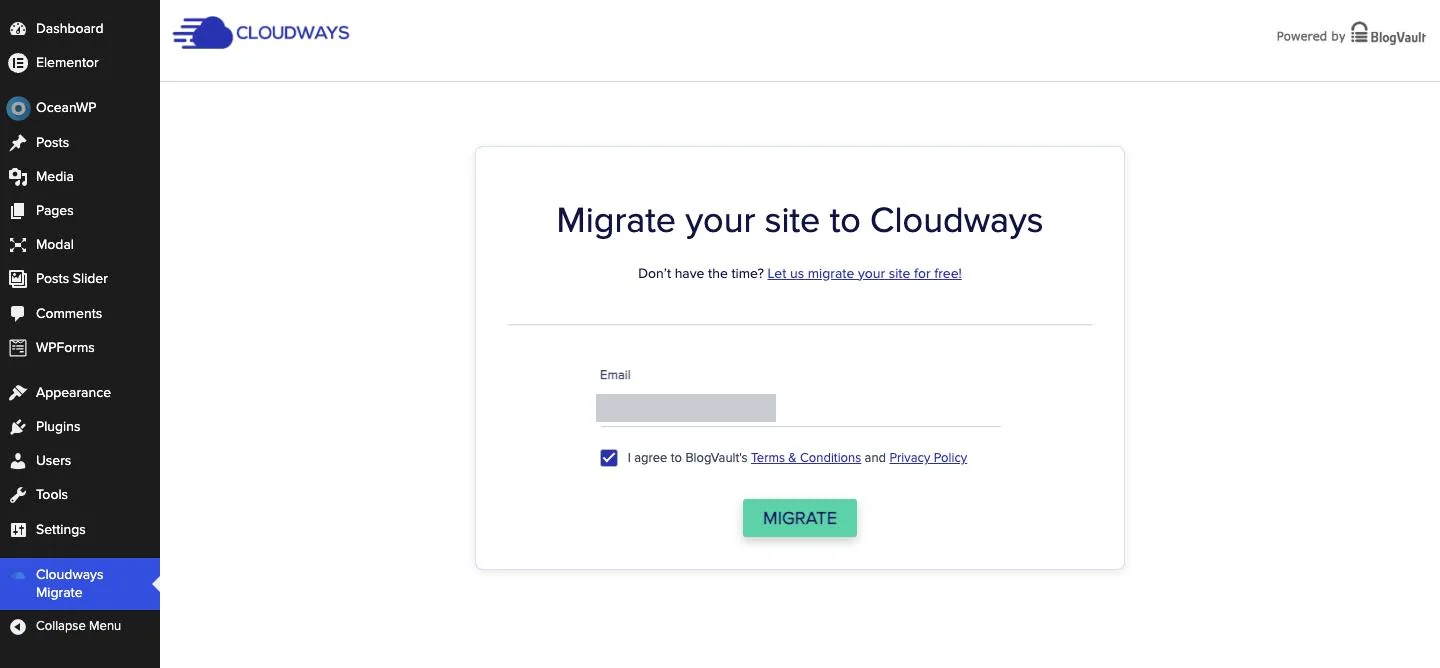
- Start it. Its Cloudways Migrate screen asks for your email and a tick for the terms of BlogVault, the outside company whose service does the copy. Click Migrate.
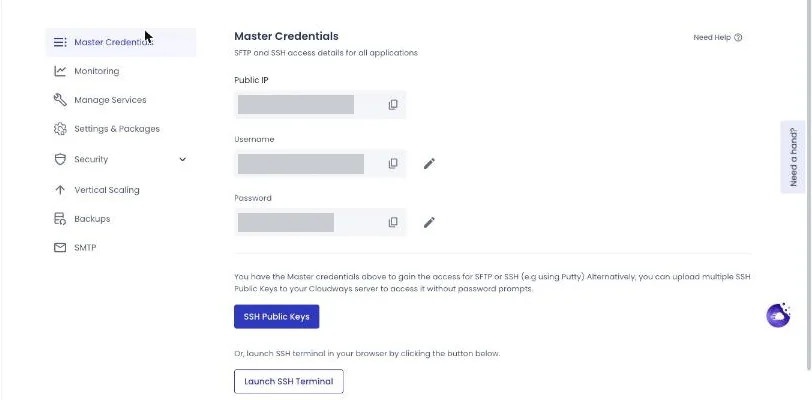
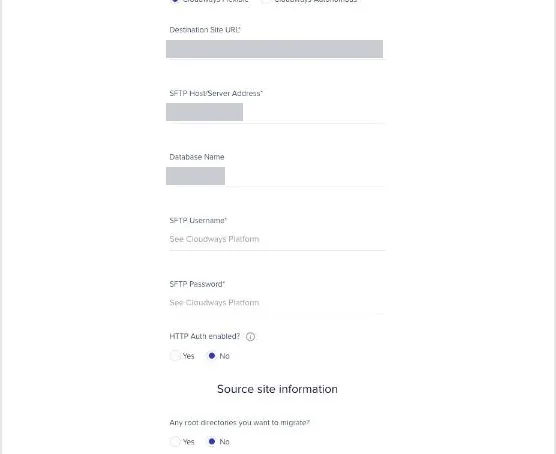
- Collect the details from Cloudways. The app's Access Details has the Application URL and DB Name. The server's Master Credentials has the Public IP, username and password for SFTP, a secure way to log in to a server's files. Cloudways' docs disagree on which login to use; on my test move, the Master Credentials worked.
- Fill in BlogVault's form. It opens on BlogVault's own site, migrate.blogvault.net, so you're typing your Cloudways SFTP password into a third party's page. Check the address bar, and I'd change that password after the move.
- Flexible, then the Destination Site URL (the Application URL, no slash at the end), SFTP Host/Server Address (the Public IP), Database Name (the DB Name), and SFTP Username and SFTP Password from Master Credentials.
- "HTTP Auth enabled?" No. It asks about the new Cloudways app, not the old site.
- "Any root directories you want to migrate?" No, unless you keep folders you need outside WordPress.
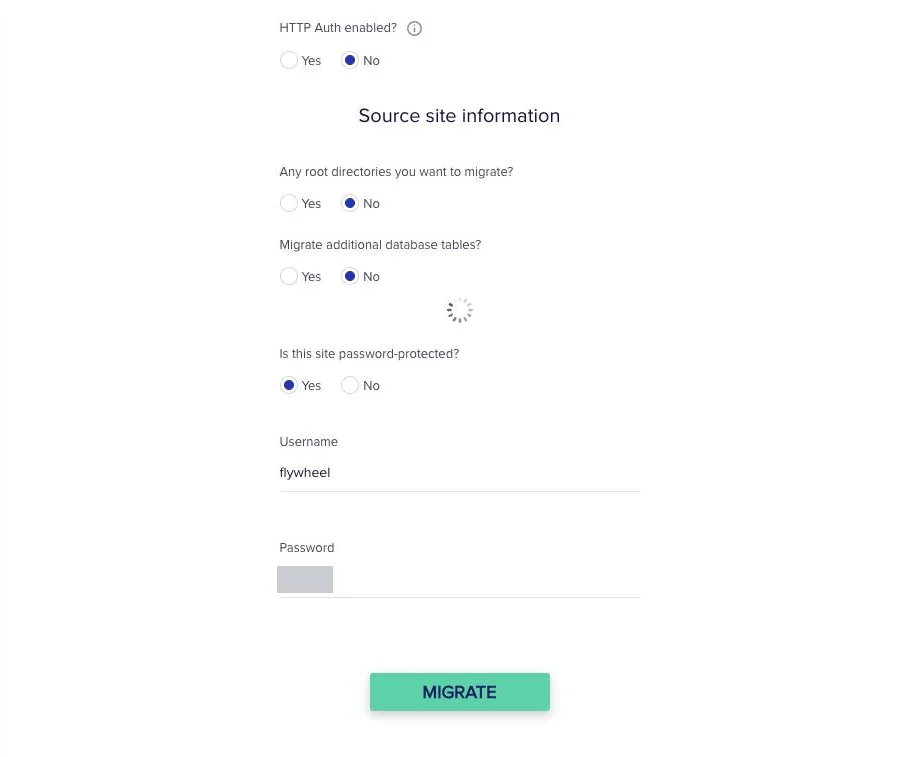
- "Migrate additional database tables?" No on my test move, and all 23 tables came across, but Cloudways' blog says Yes. If you're not sure, Yes is the safe answer.
- "Is this site password-protected?" Yes on a Flywheel demo or with privacy mode on, then the privacy-mode username and password. Otherwise No.
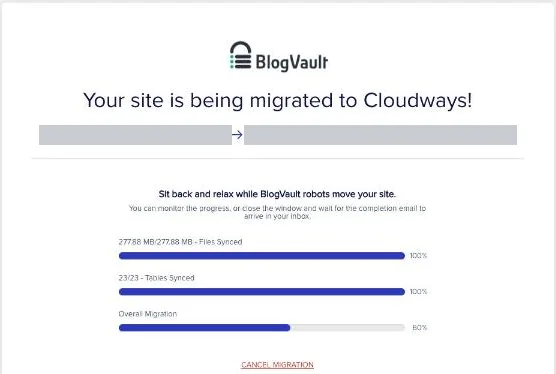
- Wait for the email. The progress page says you can close the window and wait for BlogVault's completion email. On my test move, 277.88 MB of files and 23 database tables (placeholder text, the OceanWP theme, Elementor and WPForms) finished syncing within two minutes. The overall bar then sat at 60% for a few minutes, and the email arrived at 5:06 PM PDT, about 11½ minutes after the 4:54 PM start. Cloudways says a plugin copy typically takes less than an hour.
After the copy
- Logins. Log in with the WordPress username and password you used on Flywheel. On my copy, the admin login Cloudways had generated, still shown in Access Details, no longer existed.
- Must-use plugins. None of Flywheel's came along on my test move, but check anyway: if the Plugins screen shows a Must-Use link, delete any of Flywheel's four over SFTP, Disable Core Updates above all.
- "Plugin file does not exist." Expect a one-time notice that the migrator "has been deactivated due to an error." It's harmless: the migrator plugin itself isn't copied.
Turn on Breeze, or your edits won't show right away
Breeze, Cloudways' free cache plugin, comes with Cloudways' optimized WordPress app (the "Optimized" option at launch). But the copy brings the old site's list of active plugins, so on my copy Breeze was installed and switched off. Cloudways serves pages from Varnish, a cache that hands visitors a saved copy, and with Breeze off, a post title change didn't reach logged-out visitors. They kept getting the old page, which stays until the cached copy expires; I didn't time how long that takes. Turning Breeze on didn't clear it. With Breeze on, the next edit showed right away.
Even with Breeze on, saving a setting didn't clear the cache: after a change under Settings, then Reading, the cached homepage kept the old version until Breeze's "Purge All Cache" cleared it. So activate Breeze right after the copy and purge once. After any setting or theme change, purge by hand with Breeze, or with "Purge Site Cache" under Application Settings, then General, in Cloudways.
Step 3: Check the copy before anyone else sees it
On the temporary address
The copy now lives on the app's temporary cloudwaysapps.com address, which Cloudways says "effectively acts as a staging environment." Do your checks here before your domain goes primary in Step 5, when the copy switches to your real domain. Once my own domain's certificate was on, this address failed the certificate check over https, because the certificate names your domain, not the temporary one.
Flywheel's privacy mode is a Flywheel server setting, so it doesn't come along. On my copy, "Discourage search engines from indexing this site" under Settings, then Reading, was unticked, so the copy was public right away. Google suggests keeping a test copy out of search with a noindex tag, a line in the page that asks search engines not to list it. Tick that box to add one, then purge the cache: my cached homepage kept serving the old version, without the tag, until it was purged.
Some things break on a temporary address because of the address, not the move: fonts licensed to your domain, Jetpack's image speed-up (Jetpack also goes into Safe Mode when one site uses two addresses), and Elementor Pro's license, which Elementor fixes by matching the WordPress Address and Site Address exactly and reconnecting the site.
Check images too, especially any loaded from another server: browsers block plain-http files on an https page as mixed content. On my copy's homepage, every image from the site's own uploads loaded, but two that the theme's demo import pulled from another server over http were blocked.
Rebuild your redirects
The demo's Flywheel redirect didn't come across on my test move, so rebuild yours. On Lightning, Cloudways' replacement for .htaccess rules is Web Rules, still labeled "Public Preview" on Oct 27, 2026. Its Add Rewrite Rule form defaults to "Permanent redirect (301 status code)" and to keeping the query string, the part of an address after "?", such as tracking tags. Flywheel's Source pattern worked pasted straight in: the rule saved in about 15 seconds and answered with a 301 right away, with or without the trailing slash, query string kept.
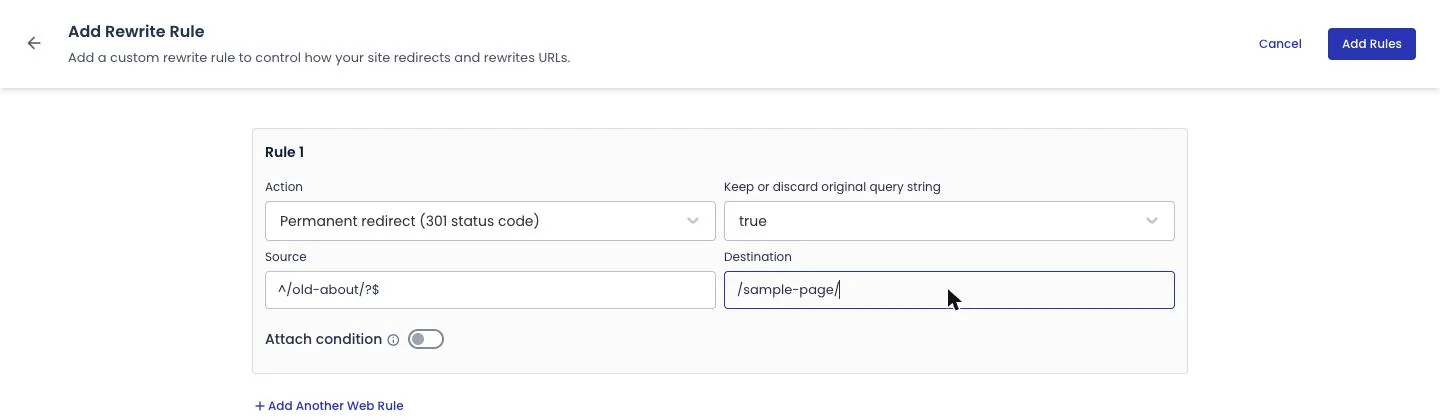
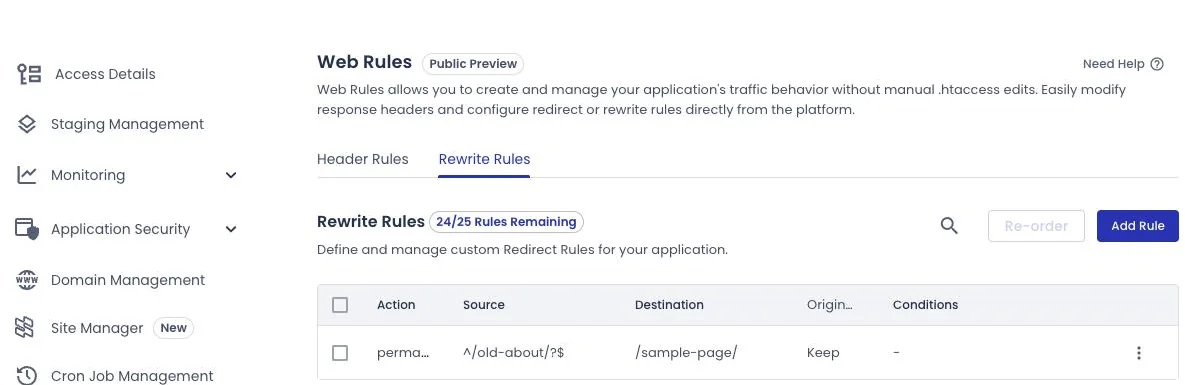
Each app gets 25 rules, each with one condition. For a long list, I'd use the free Redirection plugin, which also tracks 404 (page not found) errors.
Match your PHP version
My copy started on PHP 8.2, while the Flywheel demo ran 8.4. You change it per app under Application Settings, then PHP Settings (also "Public Preview"), with choices 7.4, 8.0, 8.1, 8.2, 8.3 and 8.4. Cloudways warns of "a few seconds of downtime of your application's backend."
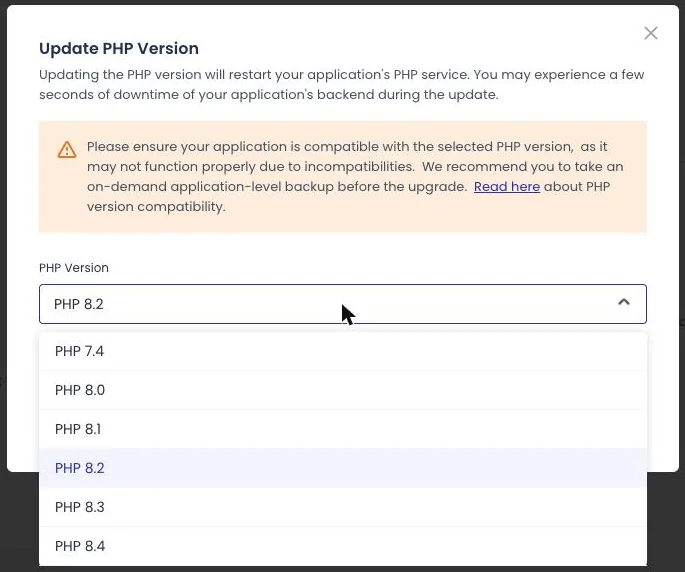
During the 8.2 to 8.4 switch on my test move, one request for the login page, which isn't cached, timed out while cached pages kept serving, so make the switch now, before your domain points here. Match what Flywheel ran. If that was 7.4, move up later as its own job: WordPress recommends 8.3 or newer, and 7.4 no longer gets security fixes.
Set up site email
Flywheel says its SendGrid records must be redone after a move. On my trial server, Cloudways' server-wide SMTP page offered "your own SMTP account or Elastic Email (Paid)." Three Cloudways pages gave three Elastic Email prices on Oct 24, 2026, so check yours in the panel. Inside WordPress, the free WP Mail SMTP plugin does the job with your own provider.
Add the DNS records your mail provider gives you (Cloudflare warns that "missing email authentication records can cause delivery failures"), and send a test email before the switch. I didn't set up SMTP on my trial, so I have no delivery results.
What to click through
Before the switch, send every form and a password reset to an address you can check. Try logins and, for a store, checkout, and compare the copy's order count with the old site's. Load a few old URLs to test your redirects. If you verified your site in Search Console (Google's free tool) with a file, keep that file.
Step 4: Upgrade and plan the certificate
Upgrade from the trial
My trial let me add a domain, make it primary and install a Let's Encrypt certificate before upgrading. Still, upgrade before a live domain points at the server: the trial lasts only a few days (five on my launch screen).
The certificate
Your Flywheel certificate stays behind: Flywheel's free certificates "are not transferable to other servers." Cloudways' standard Let's Encrypt certificate needs your domain pointed at the server first. On my trial, it went onto a subdomain already pointed there without trouble, with auto-renewal on. On a live domain, include www, which Cloudways says needs its own A or CNAME record.
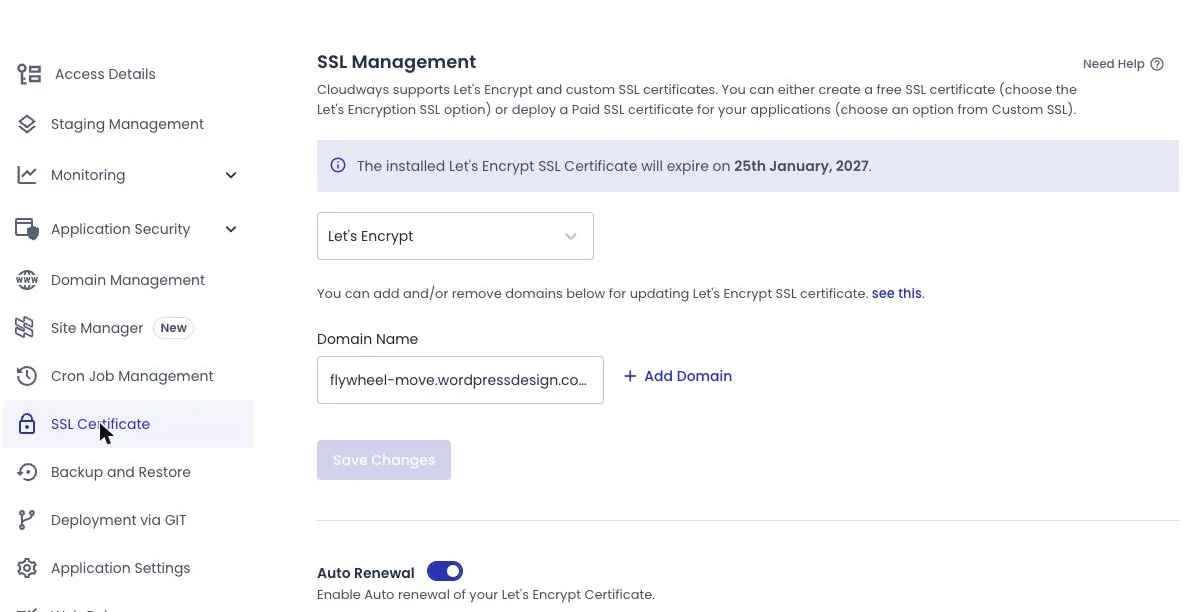
Because the certificate needs DNS first, there's a gap: between the switch and the certificate, https:// on your domain can show visitors a browser warning. A low TTL, and installing the certificate the minute DNS shows the new server, keep it short.
HTTPS Redirection, which sends http:// visitors to https://, was on under Application Settings, then General, on my trial app; check yours.
If you use Cloudflare
Flywheel asked for SSL mode "Full," not "Full (strict)," the stricter mode that also checks your server's certificate, and Always Use HTTPS off; revisit both. Cloudways says to turn off Cloudflare's proxy until the certificate is installed, then purge Cloudflare's cache. Avoid Flexible mode with a server that forces HTTPS: Cloudflare says that causes redirect loops.
Step 5: Freeze, take a final copy, switch your domain
My test move stopped before this step, so this part is from the docs, plus how I'd do it.
Freeze the old site
Between your first copy and the switch, the live site keeps changing. A short freeze lets the final copy catch everything; merging two databases afterward is a job to avoid (Gravity Forms, for one, can't import entries).
- A blog: stop publishing and close comments until the switch is done, an hour or two.
- A store: put up a maintenance or coming-soon page only for the final copy and the DNS change, aim for under an hour, and tell customers ahead of time. WooCommerce's coming soon mode is under WooCommerce, then Settings, then Site visibility. With Subscriptions, stop the old site's renewals now (see "If you run a store").
Freeze after the first copy, never before, since a maintenance page can block the Migrator.
Take the final copy
- Rerun the Migrator with no maintenance page up. That suits a blog.
- Copy just the database, for a store behind a maintenance page: export it from Flywheel's Database Manager, back up the new server, import it there, and copy new uploads over SFTP. If you've never imported a database, hand a store to Cloudways' team instead.
The final copy brings the freeze along, so reopen the new site before you change DNS, and leave the old one frozen. It also replaces anything you set inside WordPress on the copy, such as Redirection rules and WP Mail SMTP settings, and brings back the old plugin list. So redo those settings, turn Breeze back on, check again for Flywheel's must-use plugins, and purge. Web Rules, the PHP version and server SMTP are Cloudways panel settings, not WordPress data, so they should survive.
Point your domain at the new server
- Unblock search engines. On the temporary address, check that the box under Settings, then Reading, is unticked, and purge the cache. Google says to remove any noindex rule "when you're ready to start the move."
- Turn off the copy's Subscriptions queue runner, if you have one.
- Make your domain primary in Cloudways' Domain Management. The panel says "Setting a domain as primary automatically updates the base URL in your database," and on my test move it did. From here the copy answers to your real domain, which still reaches Flywheel until the next step.
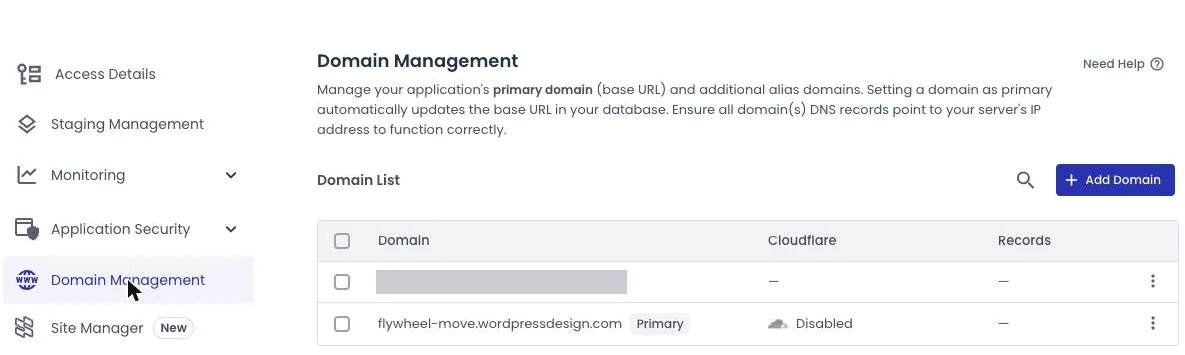
- Change two records at your DNS host. Point your domain's A record at the server's Public IP, and www with its own A record or a CNAME. Leave the MX and TXT records alone; the TXT records include SPF, DKIM and DMARC, which tell other mail servers your email is genuine.
- Watch it spread with a public DNS checker, or
dig +short yourdomain.comin a terminal. Flywheel says DNS changes can take 24–48 hours, though it's "generally much quicker." - Install the certificate for your domain and www as soon as the checker shows the new server.
- Check the copy once your computer reaches it: Settings, then General, should show your real domain for both addresses. Then turn the copy's Subscriptions queue runner back on.
Step 6: The first week on the new host
Check that Google can still reach your site
Google says to check with the URL Inspection Tool in Search Console that Googlebot, its crawler, can reach the new server. It calls "a temporary drop in Googlebot's crawl rate immediately after the launch" normal; crawl rate is how often Google reads your pages. Watch Search Console's Page indexing report, and the server logs on both servers.
Take over Flywheel's chores
Caching. Keep Breeze on, purge by hand after settings or theme changes (Step 2), and stick to one page-cache plugin.
Updates. Flywheel ran core updates; now you do. Since WordPress 5.6, new installs get major updates automatically, but an existing site stays on minor and security updates unless an admin opts in on the Updates screen. Plugins and themes have their own auto-update links on the Plugins and Themes screens. Cloudways says its paid SafeUpdates ($3 a month per site, checked Oct 24, 2026) tests updates on a temporary staging copy and can roll back to the most recent backup.
Login protection. Cloudways' pricing page lists its Imunify360 firewall under "Included in Every Plan," and its features include Brute Force Protection against repeated failed logins.
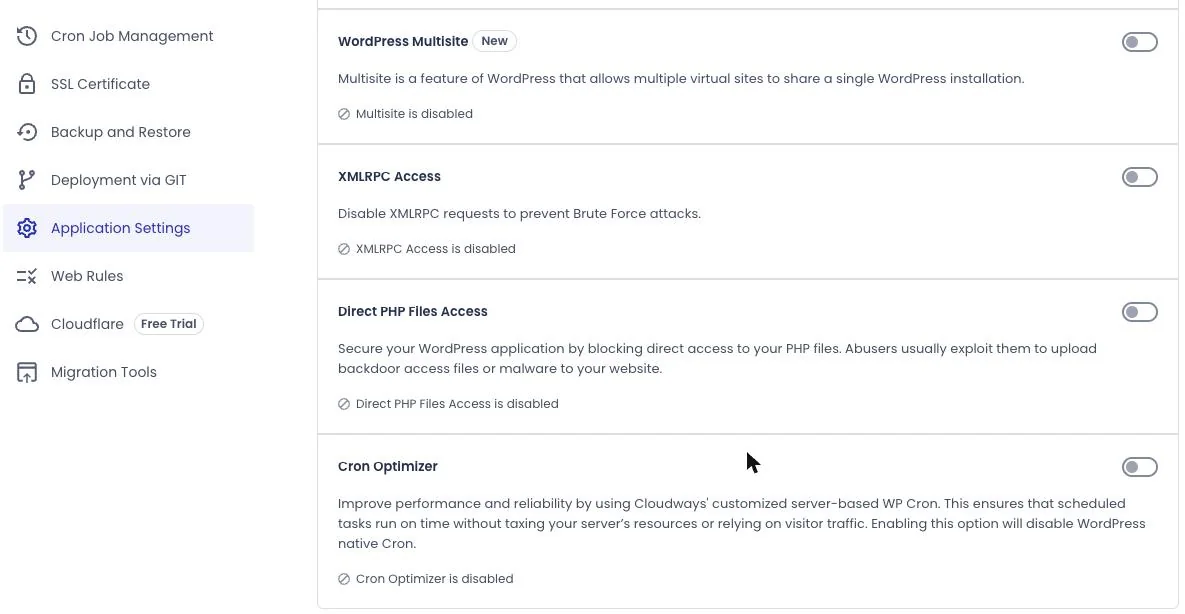
xmlrpc.php. On my trial app, requests to xmlrpc.php had the connection reset with no response, and Application Settings, WordPress tab, showed "XMLRPC Access is disabled." If something you use needs xmlrpc.php, check that tab, then test that thing after the move.
Scheduled tasks. WP-Cron, WordPress's built-in scheduler, only runs when someone loads a page. Turn on Cloudways' free Cron Optimizer, which moves it to server cron so jobs "run automatically in the background, even if your site has no visitors." It's on that WordPress tab, not the Cron Job Management page, and it was off by default on my trial app. Its note: "Enabling this option will disable WordPress native Cron." If an outside service pinged wp-cron.php for you on Flywheel, turn that off once server cron runs.
Backups. On my trial server, backups were set by default to run daily at 09:40 UTC and keep one week, with a "Take Backup Now" button. I'd take one before any big change, and keep your Flywheel download.
If something's badly wrong, point DNS back
In the first hours, you can point the A record back at Flywheel. It only works while Flywheel is still running, the TTL slows it the way it slowed the switch, and anything written on the new site since (orders, comments, form entries) won't be on the old one.
Most problems after a switch don't need that. Here's a made-up example, built from the failure points in this guide, of how a bad switch tends to show up:
- 9 a.m., the switch. DNS changes, the padlock comes back a few minutes later, and the homepage looks right.
- 11 a.m. You fix a typo in a post, but a private browser window still shows the old version. Breeze is off after the final copy. Turn it on and purge.
- 2 p.m. A customer emails to ask whether you got their contact form. You didn't: SMTP was never set up, and Flywheel's SendGrid records only worked for Flywheel. Set up SMTP and send yourself a test.
- Day two. The Redirection plugin's 404 log fills with an old URL pattern that lived only in Flywheel's dashboard. Add it from the CSV you downloaded in Step 1.
- Day three, on a store. A subscriber is charged twice, because both servers ran renewals. Turn off the old site's queue runner (see "If you run a store") and refund the extra charge.
None of those needed DNS pointed back. Point it back only for something you can't fix on the new server within a few hours.
Step 7: Cancel Flywheel last
When
I'd go by Google's test rather than a fixed number of days: "once the traffic to the old provider reaches zero, you can shut down your old hosting infrastructure." Watch whatever traffic figures Flywheel gives you, wait a few more days after visits stop, and cancel in time for whatever notice Flywheel's billing team confirms in writing.
Before you cancel
Download one more backup; Flywheel's site-deletion doc recommends it. WP Engine's terms say that after termination there's no portal access, and "We will not be able to assist you with any site migration tasks."
How to cancel
- Open the user menu, then Billing, then Details on the subscription.
- Click the gear icon, then "Cancel subscription."
- Leave feedback, then click "Request Cancellation."
On the cancellation date you lose "All sites on the subscription," "All backups retained for all sites connected to this subscription," and any legacy pricing. Flywheel doesn't say whether that's the day you click or the end of your paid term, so get billing's answer in writing. Agencies billing clients through Flywheel's Growth Suite, or with plans transferred to clients, should read Flywheel's cancellation docs first.
Clean up DNS
Remove any DNS records that point to Flywheel, as it recommends, and the SendGrid records it had you add, once your site sends through your own provider. If that provider is also SendGrid, check which records your own account needs first.
What changed
- Oct 28, 2026: First published. The hosts' pages were checked Oct 23–24, 2026, and my test move from a Flywheel demo site to a Cloudways trial server ran Oct 27, 2026.